

As of January 2015, more than 23.3% of the top 10 million websites are using WordPress (source). To say it’s a popular choice for a content management system is an understatement. Part of its appeal are the thousands of free and commercial, pre-made themes available for the system. They are an enticing way to publish a website with little or no knowledge of programming required.
…
It helps to understand the motivation different parties may have in creating a WordPress theme for sale or free download.
Individual programmers are often motivated to create a theme to upload it to a site that sells them at low cost. Much like a stock photo, think of these themes as stock themes. You pay a fee that is a fraction of the cost of hiring a professional to create a custom design and theme, you download it for your website, and the individual programmer gets a small cut of that fee. With free themes, the original programmer usually requires that a link back to them appear on the site, gaining them more internet exposure.
However, there’s also a third, more nefarious reason for creating free themes – to spread malware and other malicious code. That’s right, some unscrupulous individuals will code nasty stuff right into a theme hoping to cash in on the popularity of themes and the ease of installing them, as well as uneducated or uninformed user. So how do you avoid this one? Of course I’d recommend going custom (more on that shortly), but if you’re determined to use a pre-made theme, be careful where you get them. There are several popular sites that sell themes, and WordPress.org has a directory of themes. Those are your best bets but you often have little recourse if you purchase or download a free theme and install it yourself any of these occur:
- you manage to screw something up on the site
- your site is hacked
- your site is flagged by Google for containing malware
Using a WordPress theme? You might want to read this … | Sherry Holub | LinkedIn.

As you’re probably aware, I love to tinker with phones, especially Android ones, having been able to root several:
However, when trying to tinker with my dad’s S5, some really weird behaviour occurred. I first unlocked it using a SIM unlock code, and it started to randomly reboot. Regardless of whether or not you use an EE SIM or not (we tried EE, Virgin and Three SIMs — all were subject to the rebooting behaviour). So, I decided to take a change and rooted it and flashed Bobcat ROM (a ROM which I was running successfully on my own S5, which is the same model as my dad’s with the only difference being the network provider — I’m on Three, he’s on EE.)
The phone still randomly rebooted, so I turned on Logcat and tried to see if it recorded anything. No such luck.
So I tried a few different ROMs — Stock Samsung (Lollipop), Bobcat ROM, and Phoenix ROM. All still rebooted. So I took it to Samsung for their opinion. They said they couldn’t flash it because Knox was void (Knox is a warranty flag on Samsung devices which indicates whether you have custom flashed the device or not — I obviously have.) But they were nice enough to tell me that the behaviour described usually indicates the Firmware is wrong (which is something I didn’t flash).
So, since this behaviour started before I even did a deep-level tinker with the device (before I flashed anything), I can only assume EE either flashed an incorrect firmware, or did not flash the correct firmware – or maybe did not flash the firmware properly. I now need to find an S5 firmware to flash onto the device. Since my own S5 is working, I can check that firmware and try to find the same one.

A while ago, I posted of my frustration with Google Music when it refused to download my tracks. Well, I did some digging around and found that someone had written an API to expose the Google Music backend. The link is at
https://github.com/simon-weber/Unofficial-Google-Music-API
and has spawned several other tools including
https://github.com/thebigmunch/gmusicapi-scripts/
Which is a set of scripts designed to sync, upload and/or download from the Google Music collection.
I wrote my own Python script using the Gmusic API to bulk delete albums from my Gmusic account (it’s easy to bulk upload using Google’s MusicManager, but not to bulk delete), and the gmusicapi-scripts enables me to download most of my tracks.

When the world’s biggest technology companies start playing rough with each other, it’s normally consumers who wind up suffering. This time out, it’s Windows users who are feeling the pain after Google publicly posted the details of a Windows 8.1 flaw before Microsoft could fix it. In a public response to the disclosure, Microsoft’s security chief Chris Betz says that Google’s decision to publish and be damned before his company’s scheduled patch was less about “principles” and more about getting one over on its rival.
Microsoft says ‘no fair’ after Google exposes Windows flaw early.


An informative article form Linux Journal on Docker.
Docker: Lightweight Linux Containers for Consistent Development and Deployment | Linux Journal.

I am seriously considering studying for a CEH (Certified Ethical Hacker) certification. Given the recent spate of cyber attacks, being able to lock-down and test the security of your own network is proving to be more and more crucial…

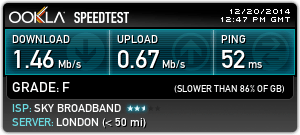
As you may recall from an earlier post, I discovered my broadband connection at home was horrendously slow compared to my 4G/LTE connection on my phone. Now, I regularly tether my laptop to my phone and enjoy download speeds in excess of 1.2Mbps, compared to 300-400kbps over my home broadband. However, if you try to turn the phone into a WiFi hotspot, then my MNO (Three) doesn’t like it and asks me to pay £5 for a 2GB allowance. However, there doesn’t appear to be a restriction on physical tethering (and I’ve downloaded more than 2GB).
So, the question is, is it possible to tether my phone to my laptop and share that connection to other machines on the network? I suspect so, but it will involve me tinkering with my internet settings, and disabling settings in my broadband router, so it behaves more like a hub than a router.
My thoughts are (and this is subject to my tinkering):
If I can tear myself away from my newly found Final Fantasy XIV questing, I may try messing with my settings and see if I can get this to work.

And this is why people are now using their mobiles phones’ 4G connection above home broadband…
On the top my home broadband (Sky). On the bottom, Three’s 4G connection. Guess which one I use most? And the interesting thing? Even whilst downloading Final Fantasy XIII via Steam, my connection on Three still registered in excess of 50Mb/s. No wonder my Sky connection was graded F. That’s F for fail, Sky.


If you are like me, and have a slow and/or unreliable internet connection, trying to upload any reasonably-sized video to YouTube can be a nightmare, forcing you to have your computer on for hours on end, and then finding your upload failed because your connection dropped, and then having to start all over again.
Well, one way to have resume protection is to use a middle-point, which is Amazon Web Services, or a similar cloud-based provider, then using that to upload to YouTube. Since the connection between the cloud system and YouTube is likely to be more reliable (and faster) than your connection, the upload from the cloud system to YouTube will be faster.
The first step is to setup and start an instance on AWS. I am using the Ubuntu image.
SSH into the instance and install supporting packages via apt-get or aptitude. Make sure you change the IP (xx.xx.xx.xx) and the key (AWS_Ireland.pem) to match your files.
$ ssh -o IdentityFile=/home/user/.ssh/AWS_Ireland.pem ubuntu@xx.xx.xx.xx

$ sudo apt-get install python-gdata python-support rsync
Then download the latest googlecl deb file from https://code.google.com/p/googlecl/downloads/list
$ wget https://googlecl.googlecode.com/files/googlecl_0.9.14-2_all.deb
Now, install the deb file using dpkg
$ sudo dpkg -i googlecl_0.9.14-2_all.deb
We can now start using the Google services, but first we need to authenticate. This is normally done via a browser, but since we are in a terminal, we skip this.
$ google youtube list
Please specify user: [enter your email address here]
You will see a text-version of the login page. Don’t bother entering your values. Just press ‘q’ to quit and confirm exit. Then, you’ll see in the terminal window, a url along the lines of this:
Please log in and/or grant access via your browser at:
https://www.google.com/accounts/OAuthAuthorizeToken?oauth_token={hidden}&hd=default
Go to that url and sign in. Then, come back to the console and press enter. If all goes well, you should see your video uploads in the console window.
Now, to upload a video to the AWS instance. You can use rsync for that, and the command to enter into your local terminal is as follows (change the key file to match yours and the IP address field to match your instance’s IP):
rsync -vhPz --compress-level=9 -e "ssh -o IdentityFile=/home/user/.ssh/AWS_Ireland.pem" source ubuntu@{EC2_IP}:.
This uploads the video called “source” onto your EC2 instance at the home folder of the default user (if you have another location in your instance, use that here). Rsync will allow you to resume uploads via the P switch. When the rsync command successfully completes, you can then SSH back onto the instance, and use the “google youtube post” command to upload your video onto YouTube.
NOTE: On some large files, rsync breaks on resuming with the error message “broken pipe”, if this happens to you, see this page (specifically, Q3).
Once your video is uploaded to your EC2 instance, you can then upload that video to YouTube by using this:
$ google youtube post path/to/video



You must be logged in to post a comment.