Tag Archives: Linux

Fedora

So, after finally fixing my environment, and manually having to use 3.17 kernel, I have a running environment, but Dungeon Defenders still hangs, and Dota 2 has graphic rendering issues — meaning I miss the opponents and they can creep up behind me, along with enemy grunts.

Guess I won’t be playing anything Steam-based for a while….

Linux

Tux, the Linux penguin

Official Ubuntu circle with wordmark. Replace ...

Deutsch: Logo von Fedora

I think I have figured out why my machine has been playing up.

In both cases, my machine was trying to run kernel 3.19, but after checking Kernel.org, I found that this kernel version has been marked EOL.

I installed Fedora 21, which came with kernel 3.17 and worked, but after updating, it stopped working, with kernel 3.19. Forcing it to run on 3.17 was okay, though.

Summary:

Good: Fedora, with Linux 3.17.4-301.fc21.x86_64

Bad: Fedora, with Linux 3.19.7-200.fc21.x86_64

Latest kernel release is 4.0.4, so I need to wait for Fedora to update.

Interestingly, it could also explain why I was also having trouble with Ubuntu, as it also ran 3.19. When trying to reinstall Ubuntu from the latest install image, it hung, presumably because it was trying to use the 3.19 Kernel. In theory, I could use an older installer (e.g. Utopic Unicorn) instead.

So now, I’m running Fedora with a 3.19 main kernel (which fails) and 3.17 secondary kernel. I was going to file a bug on Kernel.org, but found out about 3.19 being EOL, which means no bug fixes will be released, so there is no point in filing the bug.

On the plus side, my machine seems SO much more zippier running Fedora. Although trying to run Dota 2 seems a bit quirky. Dust: An Elysian Tail worked pretty well, as did Second Life (I was able to crank Singularity Viewer up to Ultra without major speed loss).

I still need to reinstall BOINC and any other missing apps I might have, and get used to using yum, yumex and dnf instead of apt-get, aptitude and synaptic all over again, but apart from that, it should be all good.

Linux

Well, something weird happened with my Ubuntu Studio installation and I was getting weird scheduling errors, so I tried Debian, but ran into the known issue with libc, so switched over to Linux Mint for now, even though that’s running on an older Ubuntu base (Trusty).

Hmm… well, whilst Linux Mint runs really well, and hibernate works perfectly, it doesn’t seem to play Steam games very well — severe graphics corruption, although Second Life seems to be fine.

I’ll try Debian again, then drop back to Ubuntu again if all else fails.

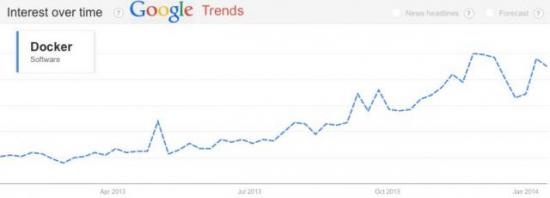
Docker Update

Build script now builds correctly under Utopic. Also modified the Jenkins job to include the commit version so you can see the commit active at the time of the build.


Docker: Lightweight Linux Containers for Consistent Development and Deployment | Linux Journal

An informative article form Linux Journal on Docker.

Docker: Lightweight Linux Containers for Consistent Development and Deployment | Linux Journal.

Tethering and Routing

As you may recall from an earlier post, I discovered my broadband connection at home was horrendously slow compared to my 4G/LTE connection on my phone. Now, I regularly tether my laptop to my phone and enjoy download speeds in excess of 1.2Mbps, compared to 300-400kbps over my home broadband. However, if you try to turn the phone into a WiFi hotspot, then my MNO (Three) doesn’t like it and asks me to pay £5 for a 2GB allowance. However, there doesn’t appear to be a restriction on physical tethering (and I’ve downloaded more than 2GB).

So, the question is, is it possible to tether my phone to my laptop and share that connection to other machines on the network? I suspect so, but it will involve me tinkering with my internet settings, and disabling settings in my broadband router, so it behaves more like a hub than a router.

My thoughts are (and this is subject to my tinkering):

  1. Configure my broadband router to not issue IP addresses — not necessary if you have static IPs on your network.
  2. Configure my laptop (which has the phone tethered) with a DHCP server so that it does issue IP addresses. Again not necessary if you have static IP addresses everywhere.
  3. If you have static IP addresses everwhere, change the default gateway to be the IP address to be the machine with the tethered phone (laptop in my case)
  4. Configure my laptop to route out packets via the gateway — notably, to switch on IP forwarding. From brief researching, this might require kernel recompiling, or at the least, module inserting via insmod or modprobe
  5. Make adjustments to the firewall (ipchains) to allow IP masquerading/NATting, preferably utilising security lock down, so not anyone can access the net via my phone.

If I can tear myself away from my newly found Final Fantasy XIV questing, I may try messing with my settings and see if I can get this to work.

Uploading (and Resuming) videos to YouTube via GoogleCL and AWS – Updated 15th Dec

If you are like me, and have a slow and/or unreliable internet connection, trying to upload any reasonably-sized video to YouTube can be a nightmare, forcing you to have your computer on for hours on end, and then finding your upload failed because your connection dropped, and then having to start all over again.

Well, one way to have resume protection is to use a middle-point, which is Amazon Web Services, or a similar cloud-based provider, then using that to upload to YouTube. Since the connection between the cloud system and YouTube is likely to be more reliable (and faster) than your connection, the upload from the cloud system to YouTube will be faster.

The first step is to setup and start an instance on AWS. I am using the Ubuntu image.

SSH into the instance and install supporting packages via apt-get or aptitude. Make sure you change the IP (xx.xx.xx.xx) and the key (AWS_Ireland.pem) to match your files.

$ ssh -o IdentityFile=/home/user/.ssh/AWS_Ireland.pem ubuntu@xx.xx.xx.xx

$ sudo apt-get install python-gdata python-support rsync

Then download the latest googlecl deb file from https://code.google.com/p/googlecl/downloads/list

$ wget https://googlecl.googlecode.com/files/googlecl_0.9.14-2_all.deb

Now, install the deb file using dpkg

$ sudo dpkg -i googlecl_0.9.14-2_all.deb

We can now start using the Google services, but first we need to authenticate. This is normally done via a browser, but since we are in a terminal, we skip this.

$ google youtube list
Please specify user: [enter your email address here]

You will see a text-version of the login page. Don’t bother entering your values. Just press ‘q’ to quit and confirm exit. Then, you’ll see in the terminal window, a url along the lines of this:

Please log in and/or grant access via your browser at:
https://www.google.com/accounts/OAuthAuthorizeToken?oauth_token={hidden}&hd=default

Go to that url and sign in. Then, come back to the console and press enter. If all goes well, you should see your video uploads in the console window.

Now, to upload a video to the AWS instance. You can use rsync for that, and the command to enter into your local terminal is as follows (change the key file to match yours and the IP address field to match your instance’s IP):

rsync -vhPz --compress-level=9 -e "ssh -o IdentityFile=/home/user/.ssh/AWS_Ireland.pem" source ubuntu@{EC2_IP}:.

This uploads the video called “source” onto your EC2 instance at the home folder of the default user (if you have another location in your instance, use that here). Rsync will allow you to resume uploads via the P switch. When the rsync command successfully completes, you can then SSH back onto the instance, and use the “google youtube post” command to upload your video onto YouTube.

NOTE: On some large files, rsync breaks on resuming with the error message “broken pipe”, if this happens to you, see this page (specifically, Q3).

Once your video is uploaded to your EC2 instance, you can then upload that video to YouTube by using this:

$ google youtube post path/to/video